Setting up Shapewiz.
The same help as inside the app, with pictures. Questions? Write to [email protected].
Setting up size charts
Four steps, all on the app’s Home:
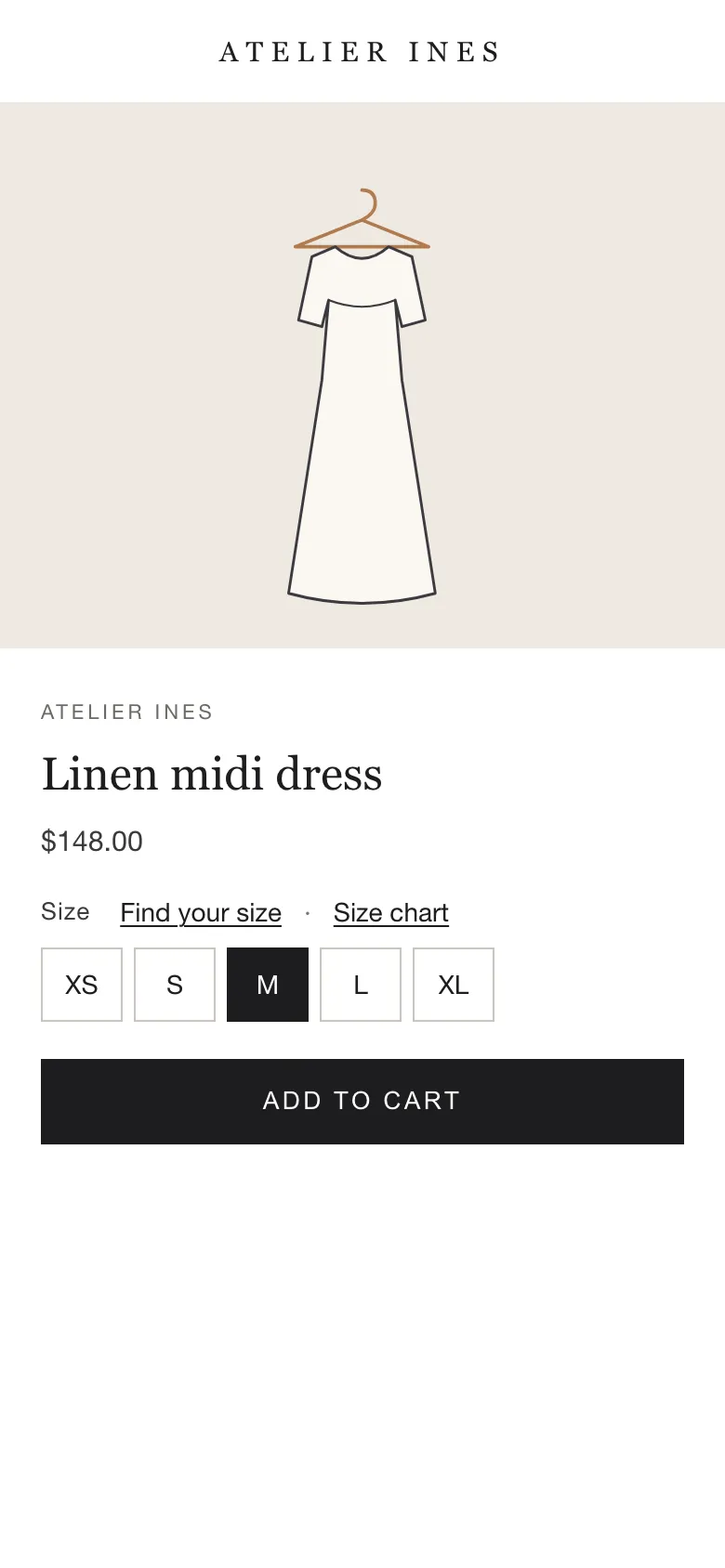
- Turn on Shapewiz in your theme’s app embeds. It adds one link next to the size options.
- Add your chart: from a template, a photo of your chart, a spreadsheet or a file.
- Choose products. “Use for all products” is one click; rules and picking products are the other ways.
- Open a product page that has the chart and look for the link next to the size options.
Adding size charts
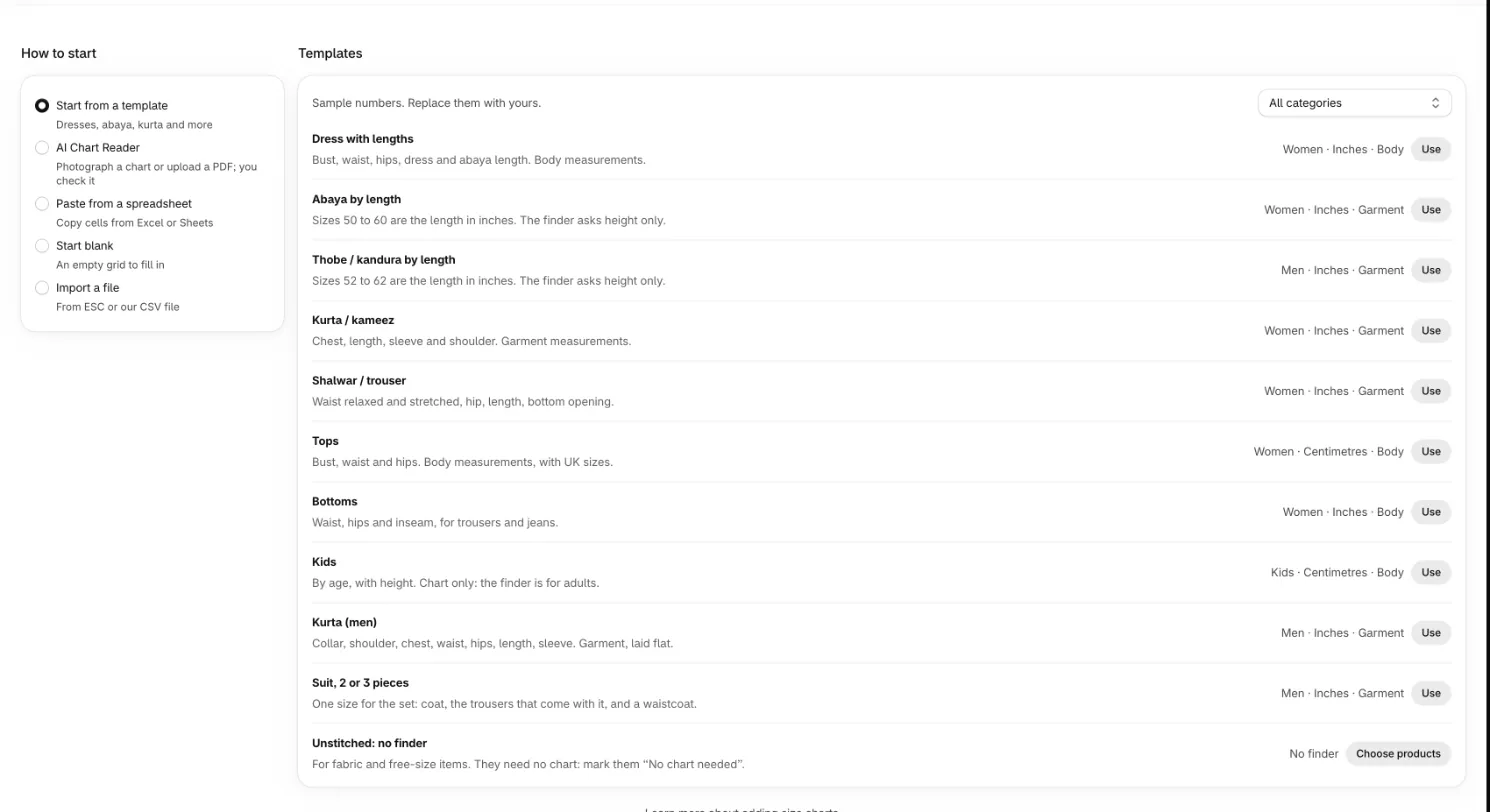
Size charts, then Add chart. Choose how to start:
- Template: sample numbers for dresses, abaya, kurta, suits and more. Replace them with yours before you save.
- AI Chart Reader: photograph your chart or upload a PDF. It reads the sizes and numbers, in English or Arabic, and marks the cells it isn’t sure of. Check those against your photo, then save. Your file isn’t kept. PDFs are read up to 5 pages.
- Paste from a spreadsheet: copy the cells in Excel or Google Sheets, header row included.
- Start blank: an empty grid to fill in.
- Import a file: an export from ESC, the CSV that Export all makes, or a spreadsheet saved as CSV. Kiwi can’t export charts, so copy each Kiwi table and paste it. Imported charts are drafts until you check them.
Editing size charts
First answer “How are these measured?”: the unit, body or garment, how garment widths are measured and, for a template, that its choices match your numbers. The preview turns on after that. Each column picks what it measures. Ranges like 86–90 and halves like 35.5 are fine.
Checks show on the cell they’re about: amber when something looks off, red when it must be fixed before you save. Test this chart shows the size three sample shoppers would get as you edit. Saving publishes the chart to your store.
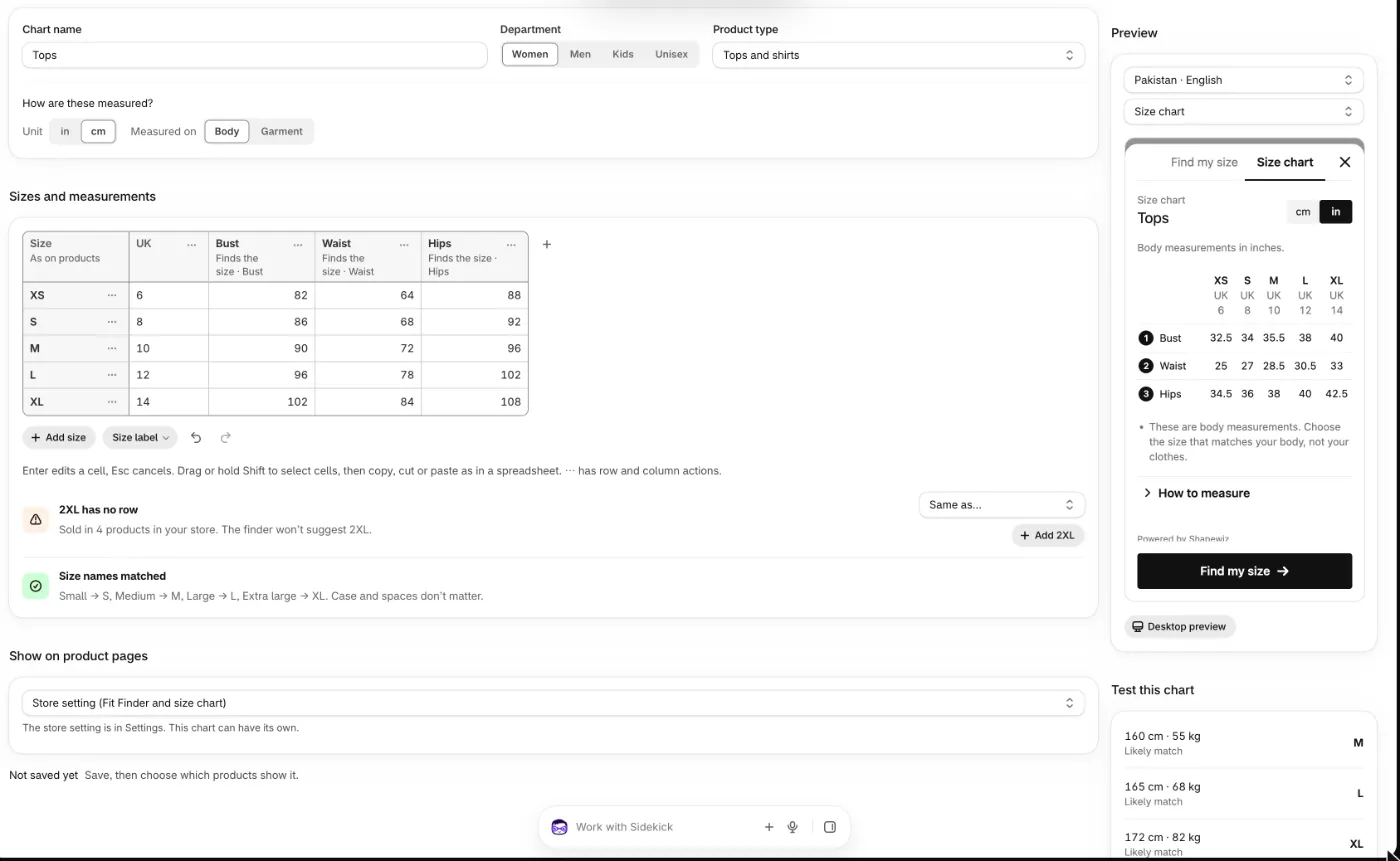
Chart order and status
A product shows one chart. A chart picked on the product always wins; otherwise the product shows the first chart in your Size charts list whose rule matches it. Move charts up or down with the ⋯ menu to change the order.
- Live: published and on products, with the size link on in your theme.
- Widget off: on products, but the size link is off in your live theme.
- Not on any products: published, but no product shows it yet.
- Draft: not published; shoppers don’t see it.
Shapewiz settings
Settings decide what shows on product pages (Fit Finder and size chart, chart only or Fit Finder only), how the link and panel look, Size-ready WhatsApp and the exchange note under a result, and units per region. Each chart can have its own “Show on product pages” in the chart editor. Changes reach your store when you save.
What the numbers count
Home and Analytics count what shoppers do with Shapewiz on your product pages. A count is sent only after a shopper does something, never for just viewing a page. Counts are anonymous: no names, emails, addresses, order details, ids or body measurements.
- Fit Finder sessions: each browser counts once a month, the first time it gets a Fit Finder result. Plan limits use this number. It starts again on the 1st of each month.
- Sizes recommended: a shopper got a size from the Fit Finder.
- Added to cart from a result: a shopper used “Add to cart” in the result. “With the size we suggested” is the share that added the size the Fit Finder gave them.
- Match Score: how closely the shopper fits the size they got: Strong match, Likely match or Rough guess. “Largest size available” or “Smallest size available” means they needed a size the product doesn’t sell, or one your chart has no row for.
- Fit Map: whether the suggested size is snug, right or roomy at the bust or chest, waist, hips and shoulders.
“Last 30 days” is the 30 full days up to yesterday, compared with the 30 days before; days follow UTC. Counts are kept for 13 months, then deleted.
Plans and billing
Plans are billed by Shopify with your store’s bill; you see the price and approve it on Shopify’s page. All languages, Arabic included, are on every plan. Past a plan’s limit the Fit Finder keeps working; Home and Plan suggest a bigger plan. A feature your plan doesn’t include stays in the app, greyed out with the plan it needs. See pricing.
Contact us
Questions or something not working? Email [email protected]. Say your store’s address (yourstore.myshopify.com), which page you were on and what you expected to see.